Enabling KiCad's IPC API and checking that Python connects
Tick “Enable KiCad API”, install kicad-python and test the connection in 6 lines. The “Connection refused” error explained, tested on KiCad 10.
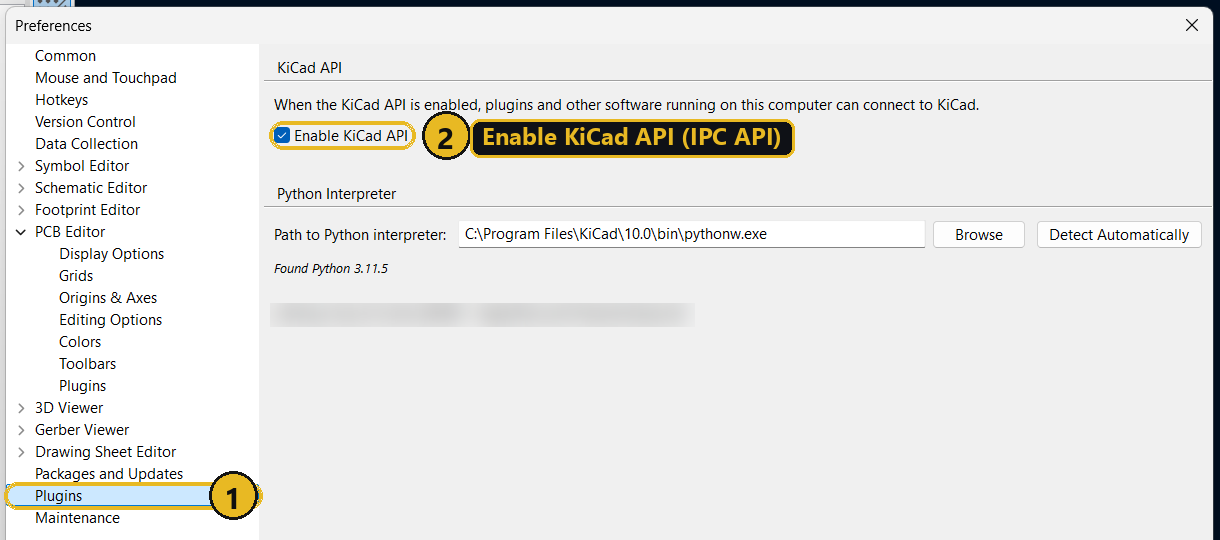
The IPC API is the new way to drive KiCad from Python: an external script (VS Code, a terminal, a notebook) talks to a running KiCad instead of importing pcbnew. It replaces the pcbnew bindings, whose removal is planned for KiCad 11. But it is disabled by default: three steps get it running.
1. Tick “Enable KiCad API”
In KiCad (the project manager or the PCB Editor): Preferences → Preferences…, Plugins page, tick Enable KiCad API (screenshot above), then confirm with OK. KiCad then starts listening for local connections from scripts and plugins.
The same page also shows the Python interpreter KiCad uses for its IPC plugins — on Windows, the one shipped with KiCad.
2. Install the Python client
The client is called kicad-python on PyPI but is imported as kipy. Unlike pcbnew, it installs into any Python, including a venv:
pip install kicad-python3. Test the connection
Open a board in KiCad, then run this script:
from kipy import KiCad

kicad = KiCad()
kicad.ping()
print("KiCad", kicad.get_version())
board = kicad.get_board()
print("Board:", board.name)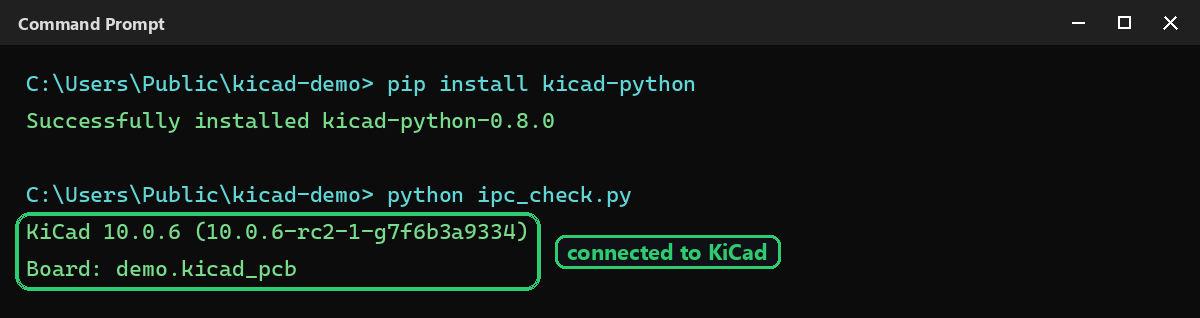
The “Connection refused” error
If KiCad isn’t running, the script stops right at KiCad():
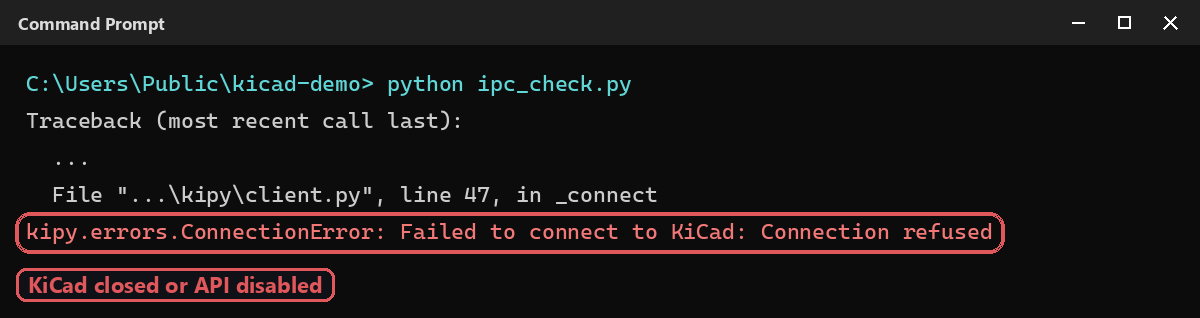
Check, in order: KiCad is running, a board is open in the PCB Editor, and the box from step 1 is ticked. Without that box, KiCad simply doesn’t listen: the script finds nobody to talk to.
Going further
Once connected, board gives access to footprints, tracks, vias and zones — every tutorial on this site shows both versions, pcbnew and IPC. To port an existing script, follow the pcbnew → IPC API migration guide. To work without the GUI, see headless KiCad.