Generating a PCB ruler (cm and inches) with a pcbnew Python script
A real 15 cm / 5 inch PCB ruler drawn by a pcbnew Python script: gold copper ticks, silkscreen numbers, SMD size and drill gauges, 0 DRC errors.
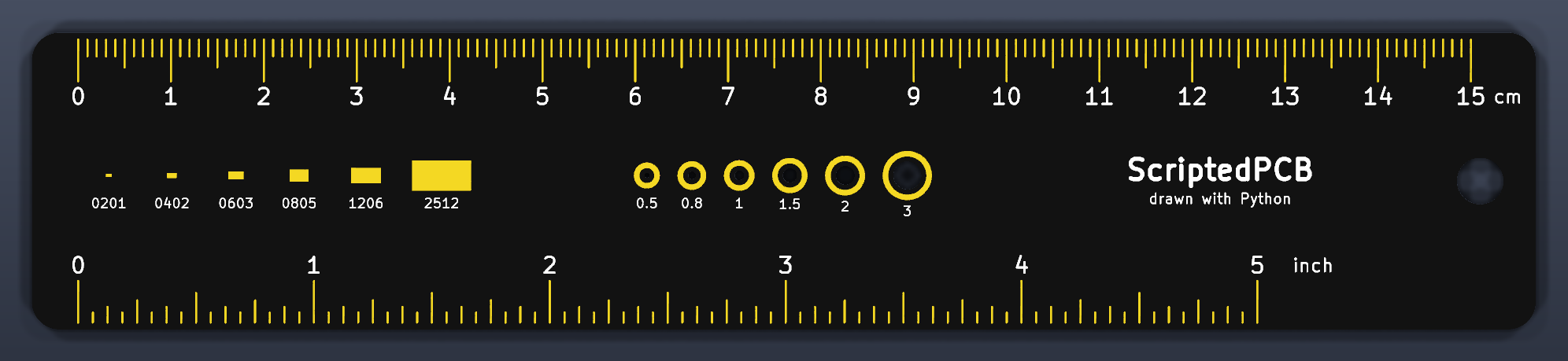
A PCB ruler is the classic giveaway from board manufacturers, and it makes a great scripting exercise: 288 objects to place to a tenth of a millimetre, impossible to draw cleanly by hand, yet they fit in a few Python loops. This project produces a real, manufacturable ruler: 15 cm on one edge, 5 inches on the other, an SMD package size gauge and a drill gauge, with 0 DRC errors.
The whole build as a step-by-step video (6:24, with subtitles):
It all relies on three building blocks already covered in the tutorials: segments (PCB_SHAPE), silkscreen text (PCB_TEXT) and holes drawn on Edge.Cuts.
The idea: one loop and a modulo
Each tick is a vertical segment. Its length depends only on its position: a long tick every centimetre, a medium one every 5 mm, a short one otherwise. The modulo % does all the work:
for i in range(151):                                   # one tick per mm, 0 to 15 cm
    ln = 4.5 if i % 10 == 0 else 3.0 if i % 5 == 0 else 1.8
    seg(board, (ZERO + i, Y0 + MARGIN), (ZERO + i, Y0 + MARGIN + ln))
The inch scale follows the same logic with a 25.4 / 16 mm step and five tick lengths (inch, 1/2, 1/4, 1/8, 1/16).
Change the length below to see how many objects the script creates:
The complete script
The script creates an empty board, draws everything, then saves pcb_ruler.kicad_pcb. Run it with the Python bundled with KiCad (see the setup guide), for example from the KiCad Command Prompt: python pcb_ruler.py.
import pcbnew
from pcbnew import Edge_Cuts, F_Cu, F_Mask, F_SilkS, FromMM, PCB_SHAPE, PCB_TEXT, VECTOR2I

X0, Y0, X1, Y1 = 100.0, 100.0, 262.0, 132.0   # board outline, mm
ZERO = 105.0       # x of the 0 mark, shared by both scales
MARGIN = 0.75      # copper-to-edge clearance (DRC wants 0.5 mm + half the tick width)
TICK_W = 0.22


def mm(x, y):
    return VECTOR2I(FromMM(x), FromMM(y))


def shape(board, kind, layer, width):
    s = PCB_SHAPE(board)
    s.SetShape(kind)
    s.SetLayer(layer)
    s.SetWidth(FromMM(width))
    board.Add(s)
    return s


def seg(board, a, b, layer=F_Cu, w=TICK_W):
    s = shape(board, pcbnew.SHAPE_T_SEGMENT, layer, w)
    s.SetStart(mm(*a))
    s.SetEnd(mm(*b))
    return s


def circle(board, c, r, layer=Edge_Cuts, w=0.1):
    s = shape(board, pcbnew.SHAPE_T_CIRCLE, layer, w)
    s.SetCenter(mm(*c))
    s.SetEnd(mm(c[0] + r, c[1]))
    return s


def rect(board, cx, cy, w, h):
    s = shape(board, pcbnew.SHAPE_T_RECTANGLE, F_Cu, 0.05)
    s.SetStart(mm(cx - w / 2, cy - h / 2))
    s.SetEnd(mm(cx + w / 2, cy + h / 2))
    s.SetFilled(True)
    return s


def text(board, s, x, y, size=1.6, bold=False):
    t = PCB_TEXT(board)
    t.SetText(s)
    t.SetPosition(mm(x, y))
    t.SetLayer(F_SilkS)
    t.SetTextSize(VECTOR2I(FromMM(size), FromMM(size)))
    t.SetTextThickness(FromMM(size * (0.2 if bold else 0.15)))
    board.Add(t)


def outline(board, r=3.0):
    for a, b in (((X0 + r, Y0), (X1 - r, Y0)), ((X1, Y0 + r), (X1, Y1 - r)),
                 ((X1 - r, Y1), (X0 + r, Y1)), ((X0, Y1 - r), (X0, Y0 + r))):
        seg(board, a, b, Edge_Cuts, 0.1)
    for c, start in (((X0 + r, Y0 + r), (X0, Y0 + r)), ((X1 - r, Y0 + r), (X1 - r, Y0)),
                     ((X1 - r, Y1 - r), (X1, Y1 - r)), ((X0 + r, Y1 - r), (X0 + r, Y1))):
        a = shape(board, pcbnew.SHAPE_T_ARC, Edge_Cuts, 0.1)
        a.SetCenter(mm(*c))
        a.SetStart(mm(*start))
        a.SetArcAngleAndEnd(pcbnew.EDA_ANGLE(90, pcbnew.DEGREES_T), True)
    circle(board, (X1 - 6, (Y0 + Y1) / 2), 2.5)        # hanging hole


def metric_scale(board):
    for i in range(151):                                   # one tick per mm, 0 to 15 cm
        ln = 4.5 if i % 10 == 0 else 3.0 if i % 5 == 0 else 1.8
        seg(board, (ZERO + i, Y0 + MARGIN), (ZERO + i, Y0 + MARGIN + ln))
    for c in range(16):
        text(board, str(c), ZERO + 10 * c, Y0 + 6.9, 1.7)
    text(board, "cm", ZERO + 154, Y0 + 6.9, 1.4)


def inch_scale(board):
    for i in range(5 * 16 + 1):                            # 1/16 inch ticks, 0 to 5 in
        ln = 4.5 if i % 16 == 0 else 3.2 if i % 8 == 0 else 2.4 if i % 4 == 0 else 1.7 if i % 2 == 0 else 1.1
        x = ZERO + i * 25.4 / 16
        seg(board, (x, Y1 - MARGIN), (x, Y1 - MARGIN - ln))
    for n in range(6):
        text(board, str(n), ZERO + 25.4 * n, Y1 - 6.9, 1.7)
    text(board, "inch", ZERO + 25.4 * 5 + 6, Y1 - 6.9, 1.4)


def gauges(board, ym=(Y0 + Y1) / 2):
    x = 108.0
    for name, w, h in [("0201", 0.6, 0.3), ("0402", 1.0, 0.5), ("0603", 1.6, 0.8),
                       ("0805", 2.0, 1.25), ("1206", 3.2, 1.6), ("2512", 6.3, 3.2)]:
        rect(board, x + w / 2, ym - 0.6, w, h)             # actual SMD body size
        text(board, name, x + w / 2, ym + 2.4, 1.0)
        x += max(w, 4.0) + 2.6
    x = 166.0
    for d in [0.5, 0.8, 1.0, 1.5, 2.0, 3.0]:
        c = (x + d / 2, ym - 0.6)
        circle(board, c, d / 2)                            # real hole (Edge.Cuts)
        circle(board, c, d / 2 + 0.85, F_Cu, 0.6)          # copper ring, 0.55 mm from the hole
        text(board, f"{d:g}", c[0], max(ym + 2.4, c[1] + d / 2 + 2.35), 1.0)
        x += d + 4.2
    text(board, "ScriptedPCB", 228.0, ym - 1.2, 2.2, bold=True)
    text(board, "drawn with Python", 228.0, ym + 1.9, 1.1)


def expose_copper(board):
    """Same shapes on F.Mask: no solder mask over the copper, so it comes out gold (ENIG)."""
    for s in list(board.GetDrawings()):
        if isinstance(s, PCB_SHAPE) and s.GetLayer() == F_Cu:
            m = s.Duplicate()
            m.SetLayer(F_Mask)
            m.SetWidth(s.GetWidth() + FromMM(0.08))
            board.Add(m)


board = pcbnew.CreateEmptyBoard()
outline(board)
metric_scale(board)
inch_scale(board)
gauges(board)
expose_copper(board)
pcbnew.SaveBoard("pcb_ruler.kicad_pcb", board)
print(len(board.GetDrawings()), "objects")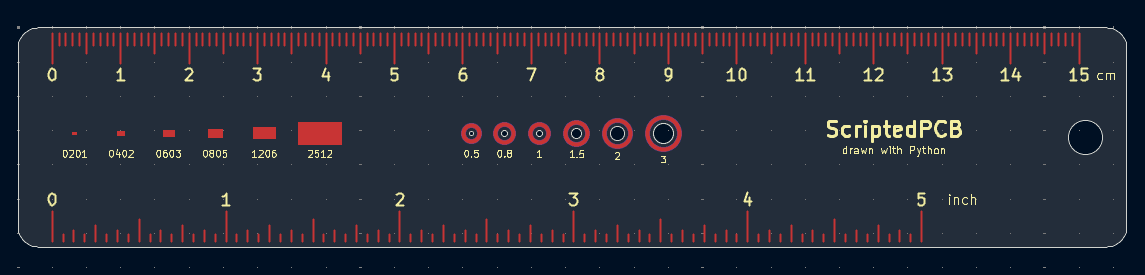
What matters for manufacturing
- Edge clearance. Ticks touching the outline trigger the copper_edge_clearance DRC error (0.5 mm by default). With
MARGIN = 0.75, the edge of each 0.22 mm tick stays more than 0.5 mm from the outline. - Exposed copper. By default, solder mask covers the copper.
expose_copper()duplicates every copper shape onF.Mask: there, the mask is removed and the copper gets the surface finish (gold with ENIG). - Real holes. A circle on
Edge.Cutsinside the board becomes a cutout. The copper ring around it is deliberately kept 0.55 mm away from the hole to satisfy the edge clearance rule. - Exact scale. Every dimension is in millimetres and converted with
FromMM: the manufactured ruler measures true, within the fab’s tolerance.
Check the result without opening the GUI with kicad-cli pcb drc --exit-code-violations pcb_ruler.kicad_pcb (exit code 0 = no violations), as explained in the headless tutorial.
Black solder mask and 3D render
The mask colour is set in File → Board Setup… → Board Stackup → Physical Stackup, Color column (pick Black for both mask layers and White for the silkscreen), with Copper finish set to ENIG. For a command-line 3D render, tell kicad-cli to use those colours:
kicad-cli pcb render --use-board-stackup-colors --quality high -o ruler.png pcb_ruler.kicad_pcb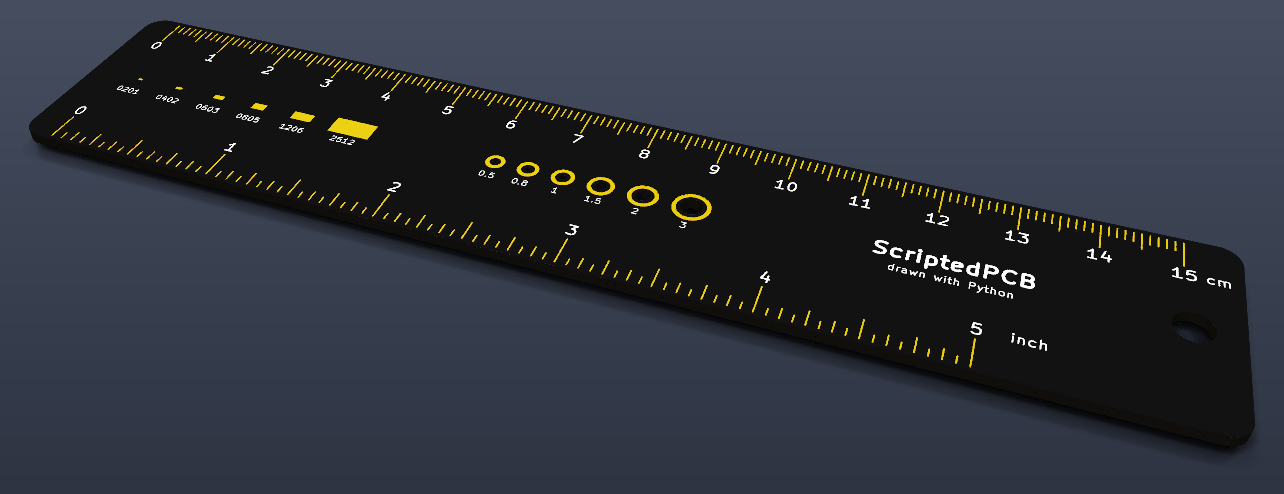
The actual colour is chosen when you order from the manufacturer; the stackup colour is mainly for the preview.
Going further
Change range(151) for a 10, 20 or 30 cm ruler (remember to widen the outline), add your logo, or replace the SMD gauge with real footprints loaded with FootprintLoad, as in the placement tutorial.