Installing KiCad and using its Python API (GUI, console, headless)
Set up KiCad's Python API: run scripts in the console or headless, fix “No module named 'pcbnew'”, and compare pcbnew with the IPC API.
Before scripting a single footprint, you need KiCad installed and a clear idea of where your Python scripts actually run. This tutorial covers installation, then the three ways to run code against a board: from the interface, from the command line with the GUI closed, and — often misunderstood — headless with the IPC API.
The same tutorial as a step-by-step video (5:15), with English and French subtitles:
Installing KiCad
Download the installer from kicad.org: .exe on Windows, .dmg on macOS, your distribution’s package or a Flatpak on Linux. Grab the latest stable release — KiCad 10/11 is recommended if you plan to use the IPC API, introduced with these versions.
pcbnew, the long-standing C++ binding, needs no explicit activation — it’s available right after installation.
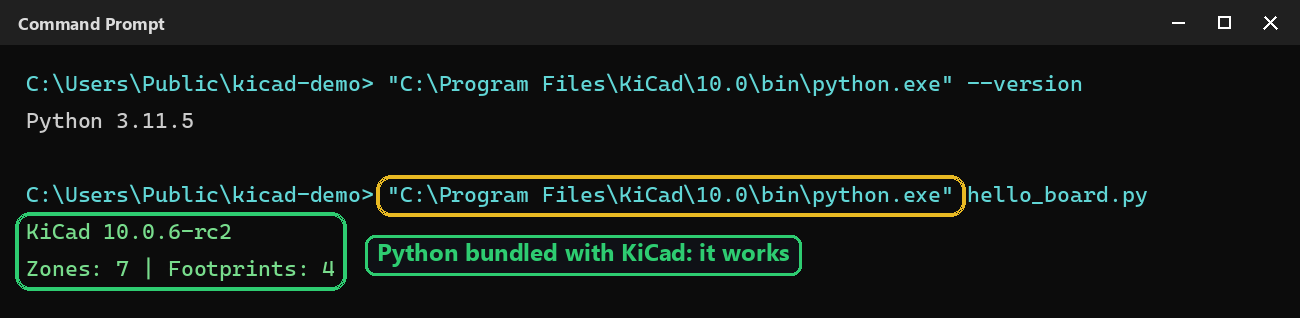
It’s also a native module compiled for one specific interpreter: it only exists inside KiCad’s own install tree, not in your system Python. For import pcbnew to work outside the built-in console, run your scripts with the Python bundled with KiCad, found under the bin/ folder of the install directory — for example on Windows:
C:\Program Files\KiCad\<version>\bin\python.exeRun your scripts with that executable ("C:\Program Files\KiCad\10.0\bin\python.exe" my_script.py), or point your IDE’s/venv’s interpreter at it. Same idea on macOS and Linux: if your system Python can’t find pcbnew, look for the one shipped with your KiCad install.
Getting ModuleNotFoundError: No module named 'pcbnew'? All the causes and their fixes are in this dedicated guide.
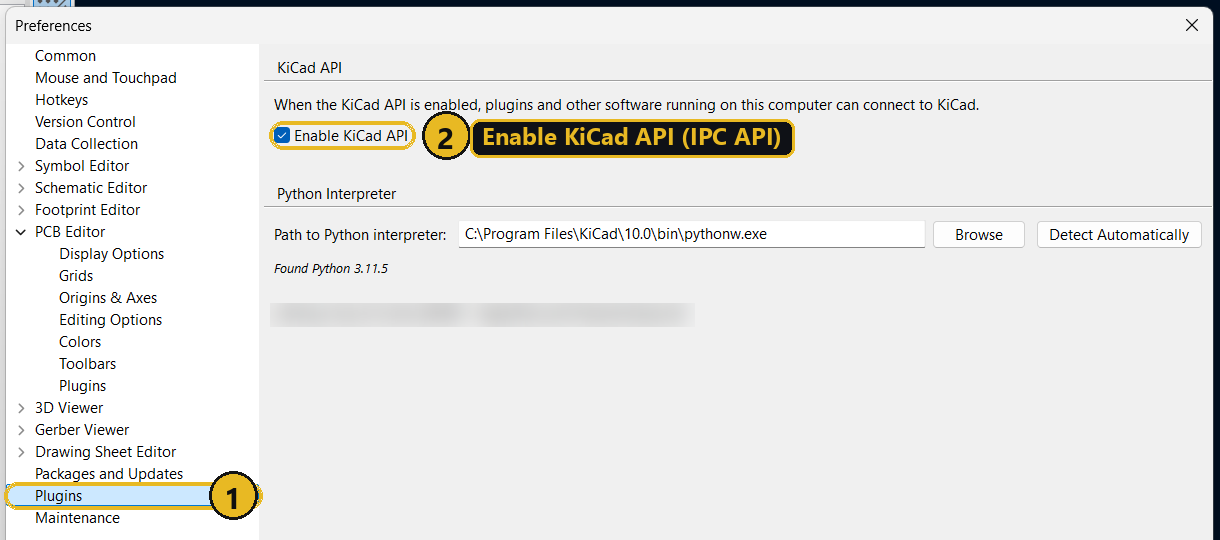
The IPC API needs to be explicitly enabled: in Preferences → Preferences…, open the Plugins page (1) and check Enable KiCad API (2).
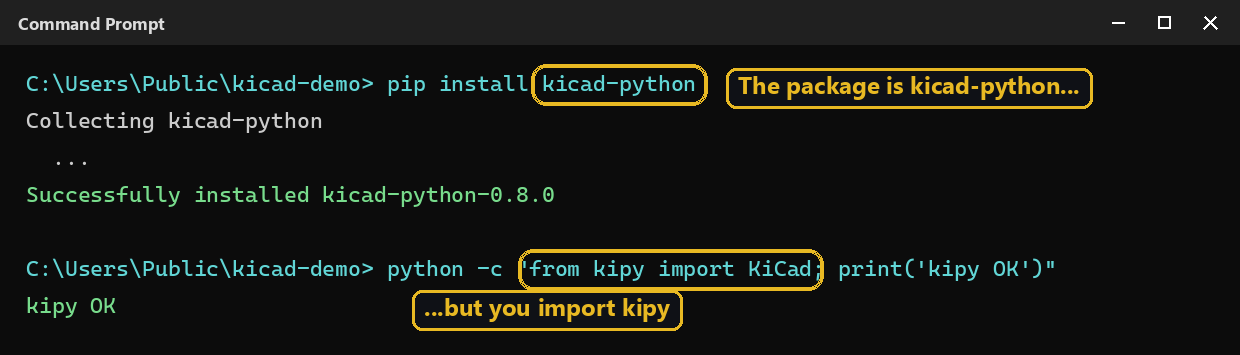
kipy, the IPC API’s Python client, is a regular pip package — installable in any Python environment, no need for KiCad’s bundled Python:
pip install kicad-pythonThe PyPI package is named kicad-python, but it’s imported as kipy.
Using the API from KiCad’s interface
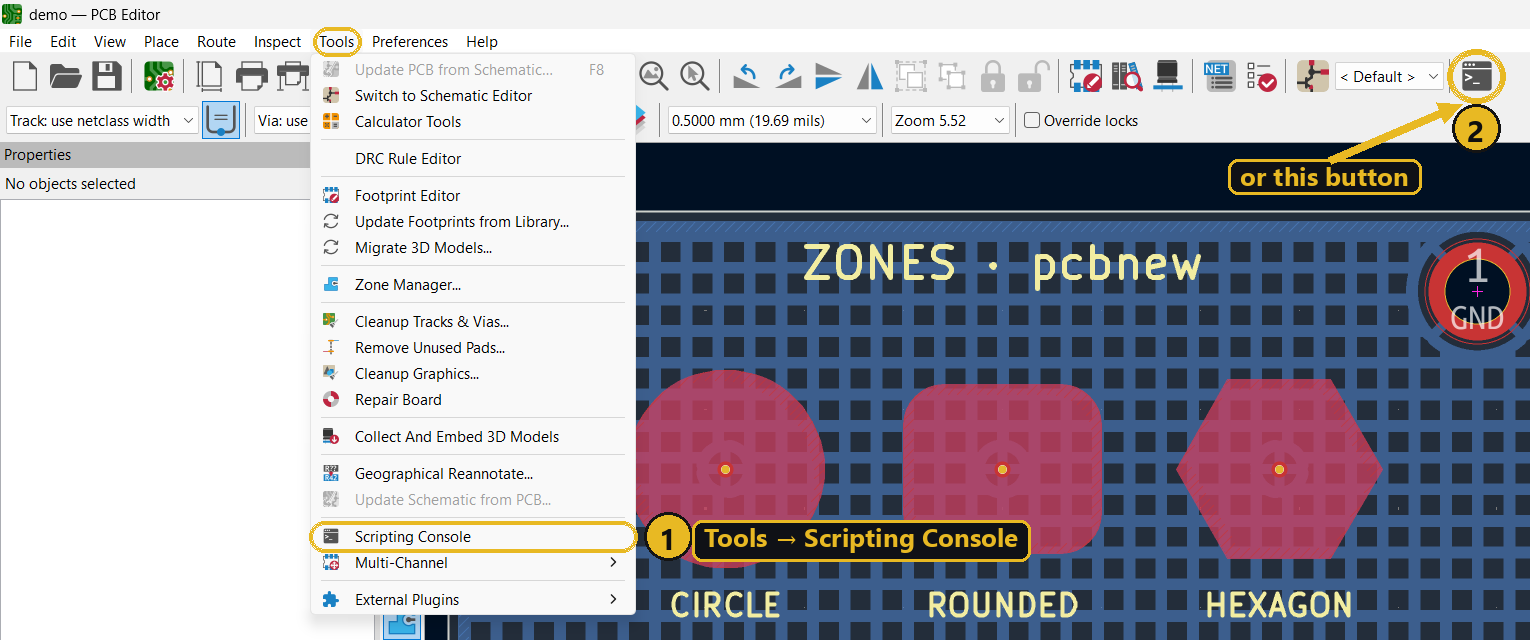
In pcbnew, open Tools → Scripting Console (1), or click the console button at the right end of the toolbar (2). It’s an interactive Python interpreter with direct access to the currently open board:
import pcbnew

board = pcbnew.GetBoard()
print(board.GetFileName())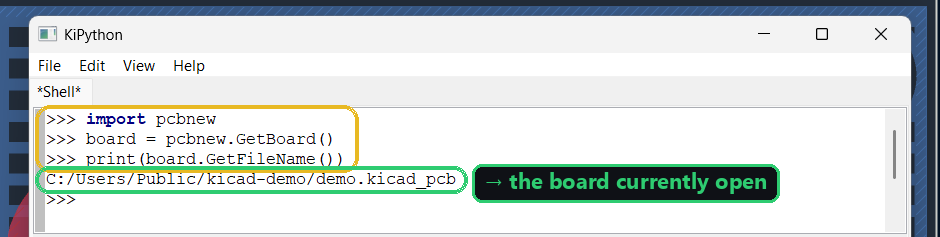
With the IPC API enabled, an external script (in your editor, a terminal, a notebook) connects to the already-running KiCad instance, with no need for a built-in console — and no need for KiCad’s bundled Python either: kipy talks over a socket, so any Python with kicad-python installed works, as long as KiCad is running with the GUI open and the API enabled in preferences:
from kipy import KiCad

kicad = KiCad()
board = kicad.get_board()
print(board.name)
Using the API from the command line, with no interface
⚠️ Reminder: this code must still run with the Python bundled with KiCad (see above), not your system Python — pcbnew can only be imported from that interpreter, even headless. On Windows, the simplest way is the KiCad 10.0 Command Prompt shortcut in the Start menu: in that terminal, python and pip point to KiCad’s install.
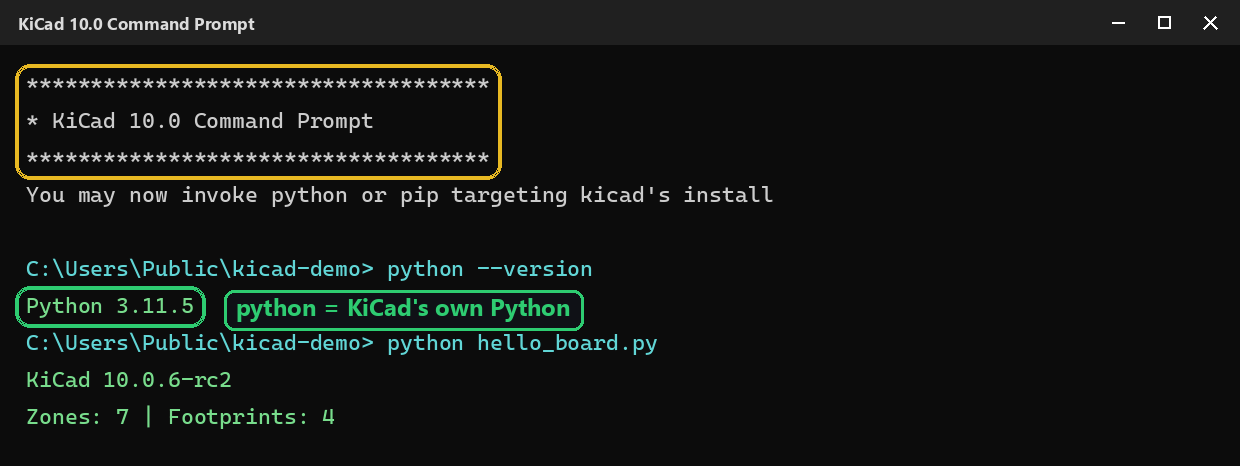
pcbnew also works fully headless: no KiCad process is needed at all — the Python module loads the .kicad_pcb file directly in memory, inside your own script:
import pcbnew

board = pcbnew.LoadBoard("my_board.kicad_pcb")
# ... modifications ...
pcbnew.SaveBoard("my_board.kicad_pcb", board)
This is the basis for most CI pipelines that validate or modify boards automatically.
The IPC API stays a client/server model even with no GUI: a KiCad process still needs to run in the background to answer requests. Instead of connecting to an already-open instance, you now ask kipy to start that headless process itself via kicad-cli, with headless=True:
from kipy import KiCad

with KiCad(headless=True, file_path="my_board.kicad_pcb", kicad_cli_path=None) as kicad:
    board = kicad.get_board()
    # ... same calls as in the footprint, via, and zone tutorials ...
with cleanly closes the connection and stops the headless process on exit, even on error — prefer it over calling kicad.close() by hand.
kicad_cli_path is optional: left as None, kicad-python looks for kicad-cli on its own in the standard KiCad install location (or on your PATH); only set it if your install lives somewhere non-standard, by passing the full path to the kicad-cli executable.
Unlike pcbnew headless, there’s always a KiCad process running in the background here — it’s simply not showing a window.
⚠️ Two separate version requirements, checked locally before writing this:
- on the KiCad side,
headless=Trueonly works from KiCad 11 or the 10.99 nightlies onward — thekicad-cli api-serversubcommand doesn’t exist yet in stable KiCad 10; - on the library side, these parameters (
headless,file_path,kicad_cli_path) only exist starting with kicad-python 0.9.0, still in development at the time of writing: a plainpip install kicad-pythoncurrently installs 0.8.0, which raisesTypeError: unexpected keyword argument 'headless'. Check your installed version (pip show kicad-python) before copying this code as-is, and expect to need an upgrade once a release with these parameters ships.
Going further
Once the environment is set up, the following tutorials show how to script each concrete layout step — footprint placement, via creation, copper zones — with both APIs.